
How to batch manage work orders?
Batch work order management allows maintenance managers to perform multiple operations on work orders simultaneously, increasing their productivity. With this feature, it is possible to:
Note: it is not possible to remove the assignment of a work order if the assigned employee records work or costs.
Operations that can be performed simultaneously
Batch manage work orders
To batch managing work orders, follow these steps:
- Go to Work | Work Order Management;
- Fill in the following fields:
- State;
- Workshop;
- Start Date;
- End Date.
Note: If no date is specified, the system filters the data by the WO date.
- In the Filters section, select the Asset (optional). You can select multiple assets;
- Click Apply;
- In the Work Orders section, select the work orders for which you want to perform the same operation;
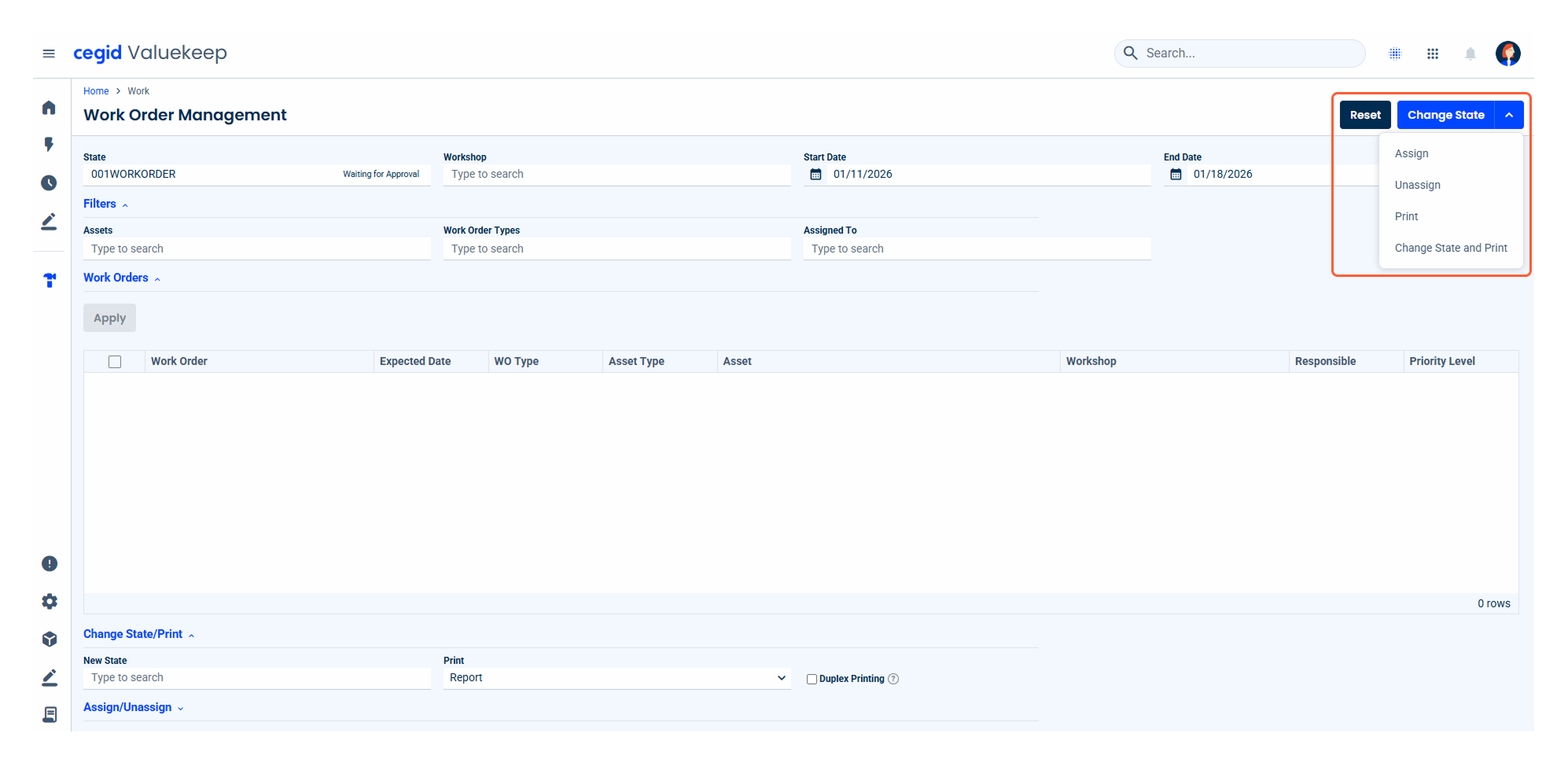
- Select the operation to perform:
- Change State: after selecting the WOs, in the Change State /Print section, select the new state you want to assign to the WO and click the Change State button;
- Print: after selecting the WOs, in the additional actions, click Print.
- Change State and Print: after selecting the WOs, in the Change State/Print section, select the new state you want to assign to the WO and, in the additional actions, click Change State and Print;
- Assign: after selecting the WOs, in the Assign/Unassign section, select the employees for the WO assignment and, in the additional actions, click on Assign;
- Unassign: after selecting the WOs, in the Assign/ Unassign section, select the employees you want to remove from the WO assignment and, in the additional actions, click on Unassign.
Additional information
- Operations are processed in the background, so you can continue to use the system;
- The processing states can be checked at any time;
- When processing is complete, it will display a notification;
- In the Print and Change States and Print operations, the WOs will only be printed when processing is complete. You can download them in the Notifications area;
In batch state changes, it is not possible to add justification for the state transition or to record the user responsible for the operation. Therefore, when printing the operational report, the Responsible field will not be filled in.