
Dashboards
The Dashboard module consists in an infrastructure that allows to access the business information using sophisticated information exploration techniques and providing a fluid usage experience for the users and for the ones responsible for creating content. To get to know all operations and features in this module, you must see the following items:

Principles and content types
Before working with the dashboards, there is a set of important concepts to retain for a better understanding of the system, for example:
Groups
The dashboards are organized in groups, which are intended mainly to organize the dashboards in the different places where they are listed.
The groups are intended to automatically make available the dashboards in the ERP modules where these groups are associated. If the group is associated to a module, the dashboards for that group will be automatically presented in the explorations area for that module. For example, the sales group presents the dashboards in the sales module.

Global parameters
The parameters presented in each dashboard are global and must be managed individually in the corresponding file.
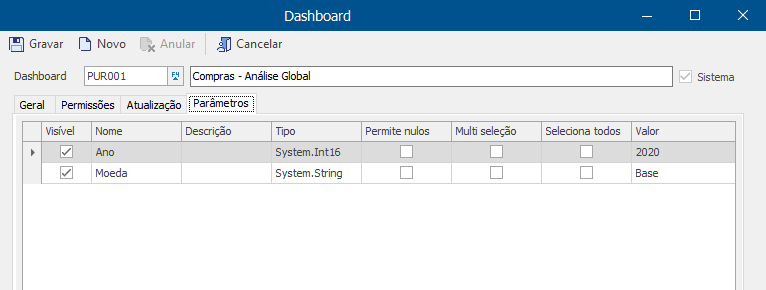
On the Dashboard Viewer, the parameters can be changed with no impact on the dashboards globally defined, whose editing can only be performed on the previous screen. It is worth mentioning that this operation is only available for users with permissions.
On the system dashboards, the global parameters are already previously loaded, and it is not possible to be changed, however, it is possible to modify the dashboards created manually parameters (except the dashboards duplicated from an existent one).
First, the parameters must be created and defined on the Designer and, after being saved, these are available for configuration.
Note: The value of the parameters based on dynamic lists, whose information is obtained from the consultations to the database, can only be configured manually.
Dashboard architecture
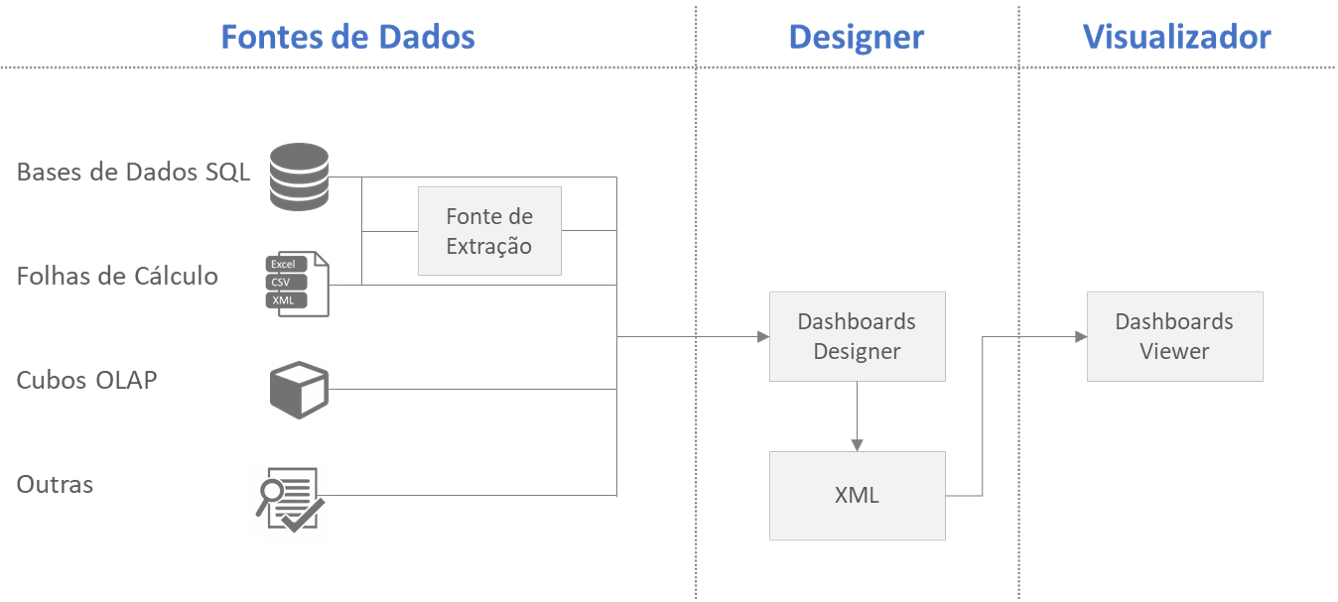
The dashboards infrastructure allows to create data sources on multiple sources. The designer acts on data sources to create the dashboards, saved in XML on the company database. The viewer interprets this dashboard and loads the data before showing the user the results.
Data update
Depending on the dimension of the database and the date structure being processed, the dashboard data update can be a lengthy operation. For this reason, there are two data update templates:
- Direct access to the data source: this is the most simple and flexible template, allowing direct access to the database every time a dashboards update is performed (when loading and every time the user request an update). Besides being lengthy, this operations takes a long time processing the database, what can jeopardize the use of the system;
- Access using an extraction source: the use of a extraction source allows to process the data using ECHO in a recurrence customizable in each dashboard, decreasing the number of data processings and, consequently, the hours of least system availability.
Note: All base dashboards use this update template.
The viewer presents information about the time of the last data processing in the right lower corner:
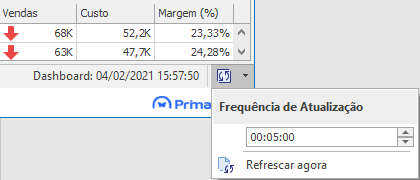
- Immediate update: if you wish an immediate data update, you can perform it using the option Update Now;
- Automatic update: it is possible to activate the dashboard automatic update (by activating the button Automatic update) and set up the dashboard automatic update time;
- Note: This option implies the direct access to the database, and, for this reason, this operation can be lengthy.
Even though the technology is made available in all locations, the current version of the Dashboards module is not totally localized, and this implementation is planned for the Service Release 2. However, this does not condition the creation of new dashboards in the user language.